Begin with the workspace boundary
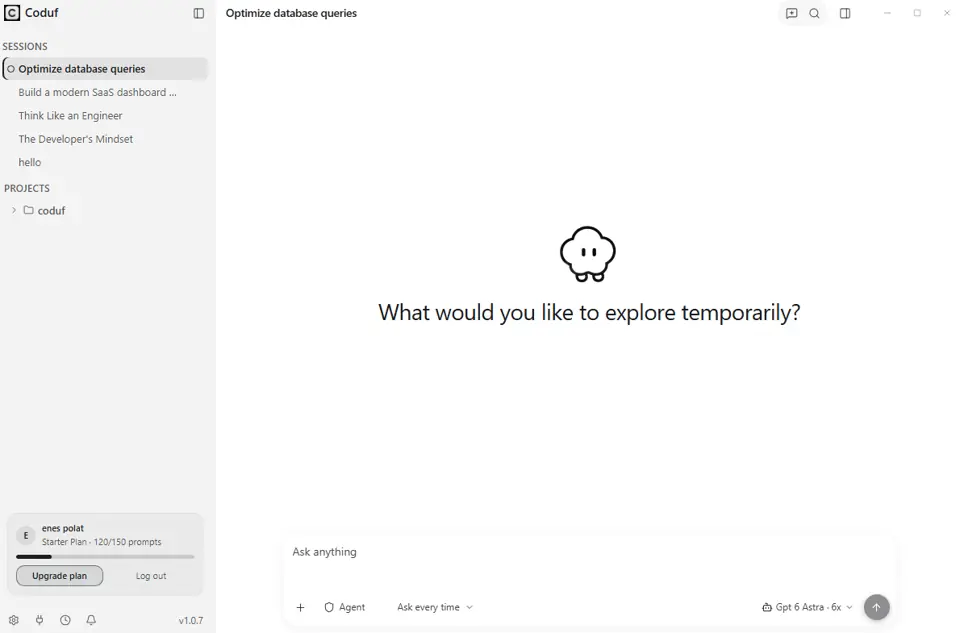
A personal account and an organization workspace serve different purposes. Before starting a task, confirm which workspace is active. Coduf’s account interface includes organization management and workspace selection. Keeping that selection explicit helps avoid confusion about where a session belongs and which account settings apply.
Workspace organization is not the same as repository authorization. A person’s membership in a team should not be treated as permission to access every external repository or service. Confirm those permissions separately through the systems that own them.
Review member access deliberately
Use the organization interface to inspect membership and the available role controls. Choose access based on the person’s actual responsibilities. After changing a role or removing a member, verify the effect using a representative action. A success notification confirms a request was accepted; it is not a complete test of every authorization boundary.
Keep administrative work separate from ordinary coding conversations. Do not share passwords, recovery codes or secret API keys in an article or support example. When inviting a teammate, confirm the intended account and organization before completing the action.
Read the package that applies
Package contents are defined by the current offer and your organization configuration. Review the live pricing information and account settings together. Do not assume that a personal package and a team arrangement have the same allowances or billing behavior.
Check the package selected for your organization before onboarding new members. Keep a record of the current offer so administrators and teammates work from the same information.
Keep device access visible
Device management is useful when a teammate changes computers or when you need to review connected access. Inspect the list of devices, recognize the ones that should remain authorized and review unexpected entries. Revoking access should be followed by checking that the affected device can no longer perform the protected action.
Avoid treating a familiar device name as proof of ownership. Use your organization’s normal verification process when investigating an access concern. Do not publish personal device identifiers or account details in troubleshooting material.
Make a small onboarding checklist
Confirm the workspace, membership and intended role. Check that the teammate can perform a permitted action and cannot perform a restricted administrative action. Confirm the current package and the route for support questions. Document the result so the next administrator can understand what was verified.
For project work, keep the task specific and review the output before merging. Team organization improves coordination but does not replace code review, repository permissions or the checks required by your deployment process.
Scope of this feature page
This page describes organization, account and device-management surfaces present in Coduf. It does not assert an enterprise certification, an uptime guarantee, SAML single sign-on, completely offline operation or automatic access to every provider. Evaluate those requirements only against explicit, current product documentation.
Your next project starts here.
Explore the desktop app and choose the plan that fits your workflow.