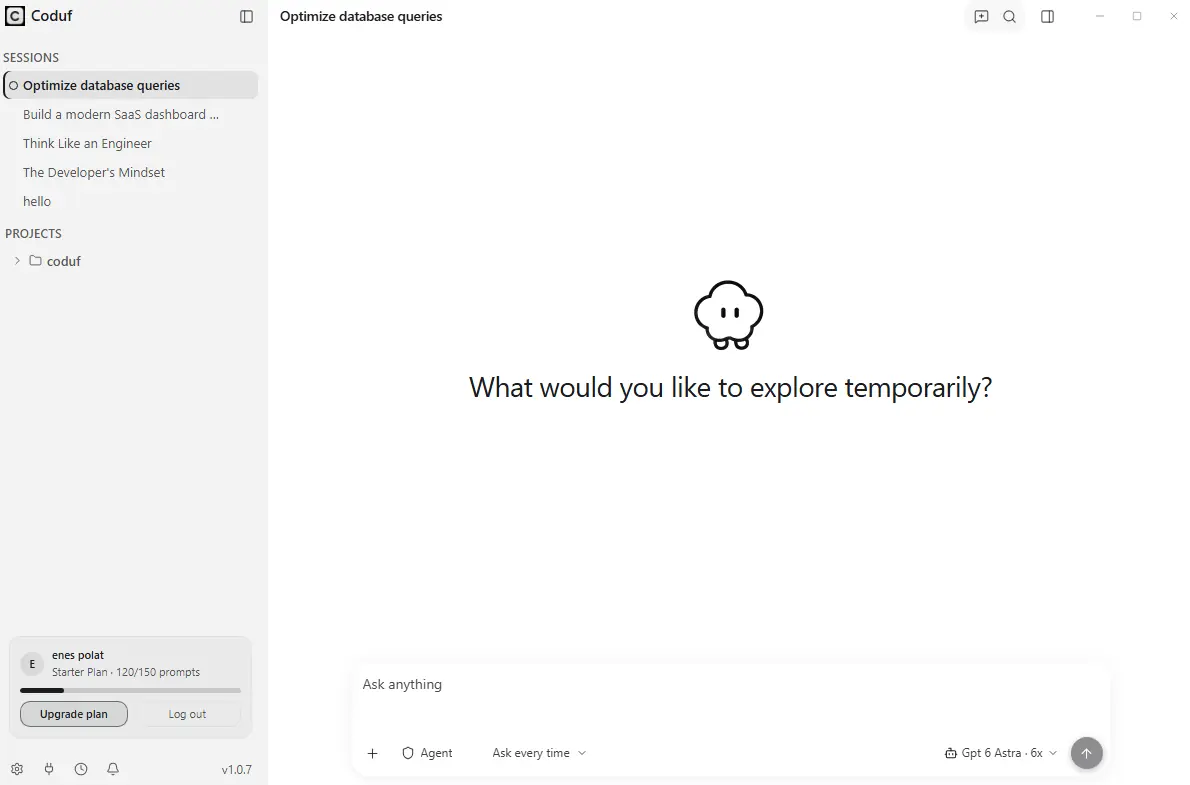
A workspace for a specific task
A coding conversation is easier to follow when it has a clear goal. Begin with the project you intend to work on and describe the outcome you need. The Coduf desktop interface includes a conversation area, a prompt composer and project and session navigation in the sidebar. Use these surfaces to distinguish the current task from an unrelated idea or a different project.
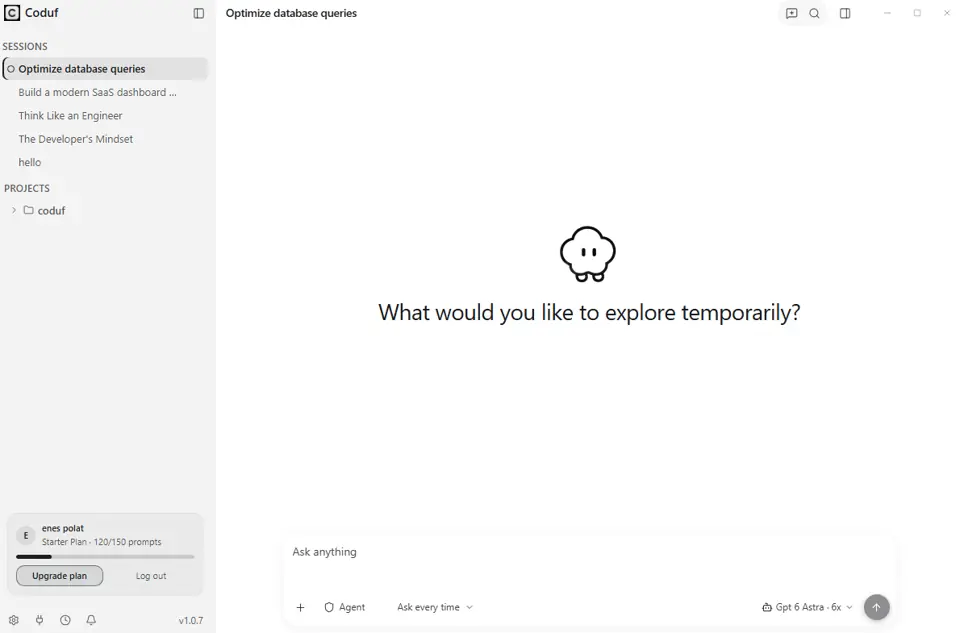
Keep conversations purposeful
Use one conversation for a coherent piece of work: investigating an error, discussing an implementation or reviewing a change. When you move to a different goal, start a separate session rather than mixing unrelated requirements. A session title helps you recognize the topic later, but it is not proof that the assistant has loaded every file in a project. State the relevant context explicitly when it matters.
Return to previous work
The sidebar provides a place to find recent sessions and projects. Before continuing an older conversation, read the last instructions and results. Confirm whether the repository or task has changed since that session. A prior answer may describe an earlier file state, so validate it against the current project rather than assuming it remains correct.
Choose a model with the task in mind
The prompt composer exposes the configured model selection. Model availability can change; check what your workspace currently offers. For a small explanation, a concise prompt may be enough. For a multi-file task, provide constraints and a verification plan. Do not infer offline operation or a particular data-retention promise from the presence of a model name.
Manage access separately from project work
Account management includes connected devices and usage information. Check device access when changing computers or investigating an unexpected session. Inspect the active workspace and the package selected for your account when switching between personal and organization work. The pricing page is the reference for published account options.
Review every meaningful change
Project organization makes work easier to resume; it does not replace code review. Inspect output and run the checks appropriate to your repository. When a result is only a proposal, treat it as a proposal until you have verified the actual implementation. A working build, a successful test and a visual review each answer different questions.
Get the application
Use the official download page for available release files and release notes. Only installers actually offered there should be treated as available. If you encounter an account or device authorization problem, use the support contact published on the site and avoid sharing credentials in a project conversation.
Your next project starts here.
Explore the desktop app and choose the plan that fits your workflow.